
Learn how to use Swoopa's powerful features to find the best deals faster

Create targeted car searches with specific makes, models, and price ranges to find your next vehicle.

Master keyword matching and filters to find any item on Facebook Marketplace and other platforms.
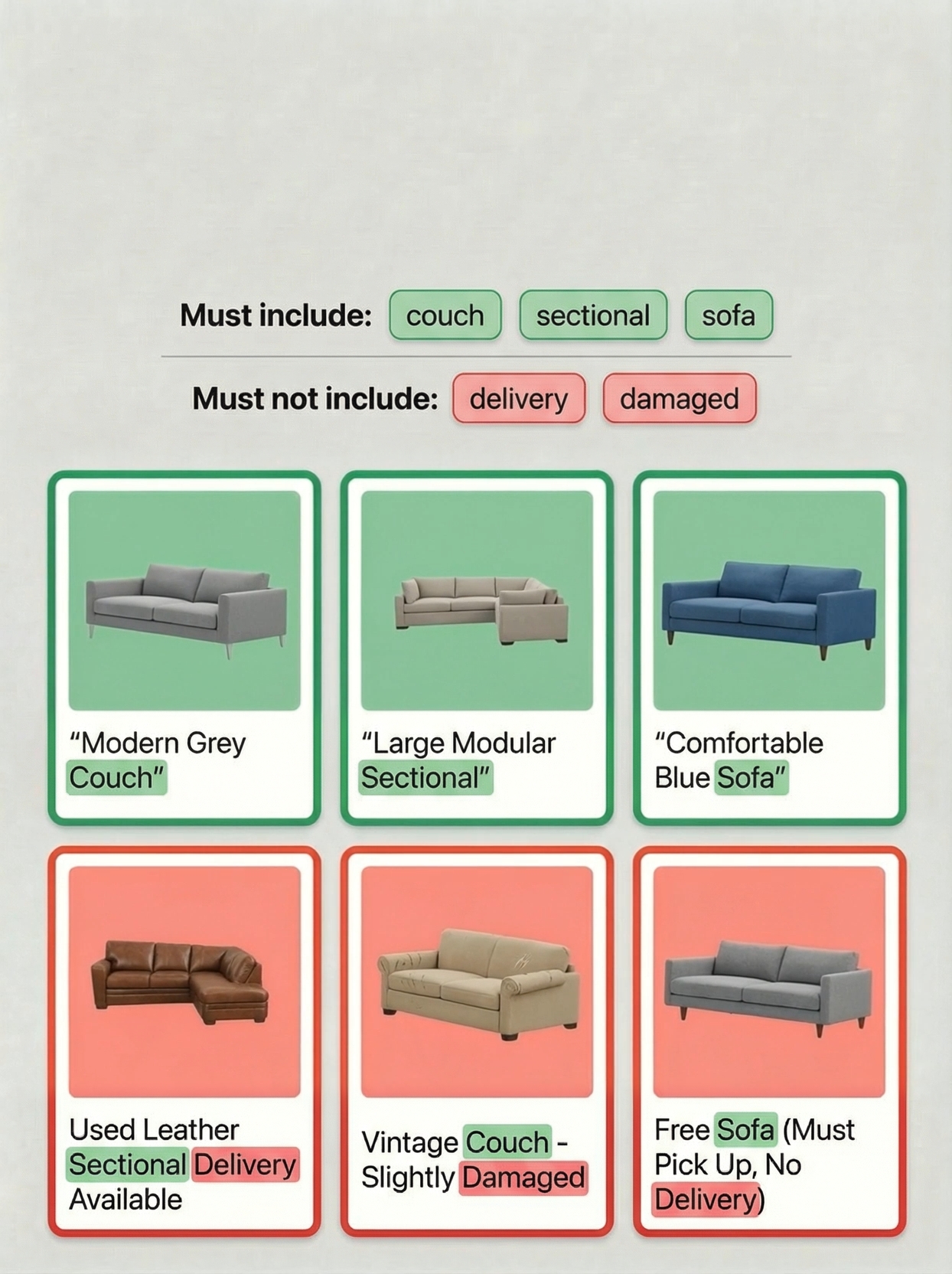
Learn how to use positive and negative filters to fine-tune your search results and eliminate spam.

Use AI-powered filters to block dealer listings and scams, focusing on genuine private seller opportunities.

Set up price filters for iPhone models to only see profitable deals and avoid scams.

Let AI automatically filter out overpriced listings and show you only the best deals.
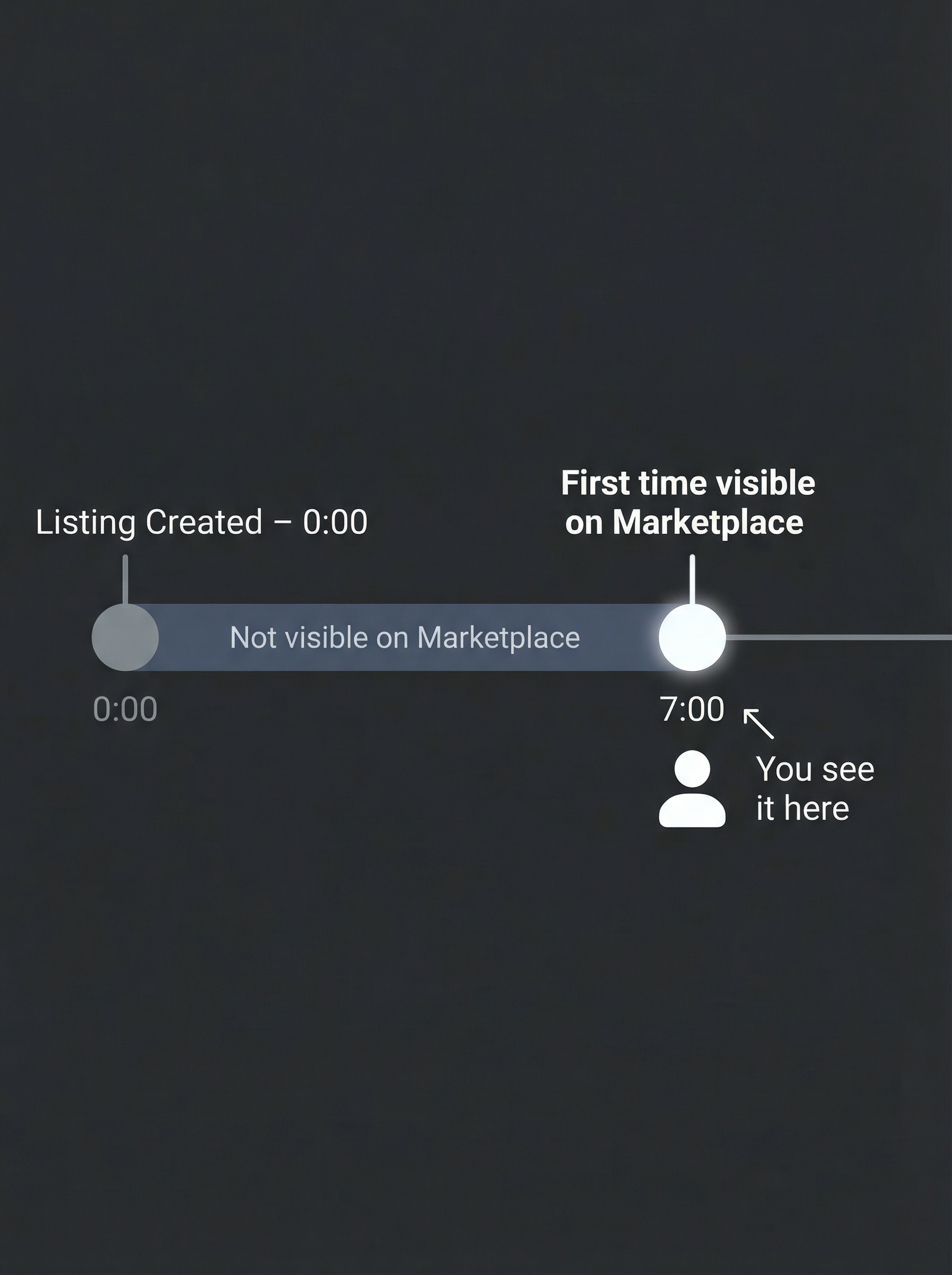
Understand how Facebook is slow to publish listings and how Swoopa helps you get notified faster than anyone else.
Yes absolutely, many of our top customers are using a custom plan, just send us a message or book a call to get started.
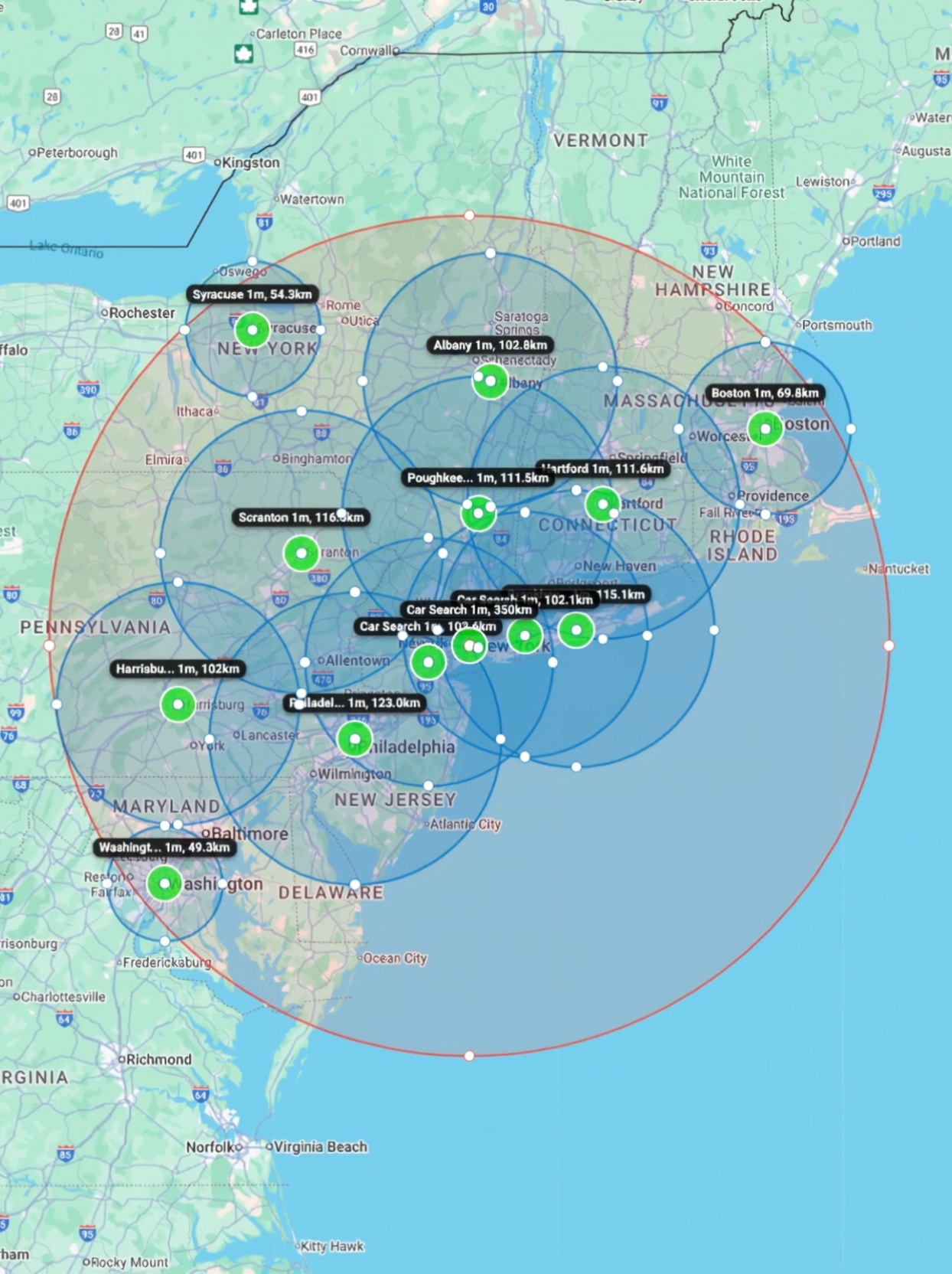
For Facebook searches, we recommend adding searches in all the main cities you want to search from. Results appear more slowly the further away they are, so adding multiple locations significantly improves speed and coverage. You can ask us to do this for you at any time.
If you find that some listings are not showing up in Swoopa follow these steps:
To create a car search, tap Home, then tap Create Search, select Vehicle, then choose Cars or Trucks and Motorbikes. Choose your search location, platform, and alert speed. If you want to search all cars and exclude ATVs and bikes, go to Make and select "Any Car". Set your minimum and maximum year range, then set your price range (we recommend at least $350 minimum to block tire and parts listings). For Facebook searches we recommend adding searches in all the main cities you want to search from. Learn more in our car search tutorial.
Swoopa has excellent spam filtering. Learn more in our keyword filtering tutorial. Here's how to use it:
Swoopa has automatic filters that block resellers who post more than 3 items in a category. This helps block furniture resellers, dealers and iphone shops and some scammers. For some more common items Swoopa automatically adds filters when you create a search. You can check these filters by clicking the cog on your searches. If you offer delivery on your couches this is probably why your listing didn't show.
Swoopa has a national search but you need to message us about this.
Swoopa has a function where you can view the results of a particular search. You can do this by clicking the button in the top right hand corner of your feed. When you have selected this you can choose the search you want to see and click apply. NOTE that this does not filter your searches but rather just the results you currently see. It also doesn't have anything to do with keyword/spam filtering. To add spam filtering (super important I can't stand spam in my feed) go to the search tab. Click on the cog on the search you want to add filtering to. Then you can add words that must be in the title of listings and words that must not be in the title of listings. When you add filtering this will just apply to new results as they come into the feed not the existing results in the feed.
We would love to hop on a call. Just message us then we will arrange a time. You can also book a call directly.
Message us in the chat, we are flippers and will dive into the problem you are having and solve it with you. You can also book a call with an expert.
Our team is here to help you get the most out of Swoopa. Book a call or chat with us anytime.
 English English
 German
 Polish
 Spanish
 French
 German (Switzerland)
 Portuguese
 Italian
 Turkish
 Dutch (Belgium)
 Dutch